Currently you can only edit Home Screens for each Team within your organization.
This means that any Home Screens you create are only visible to the athletes within the Team you are creating the Home Screen of.
Step 1
Navigate to Teams and then select the Team whose home screen you want to customize.
Once the team is open, click the Home Screen tab.
Step 2
Note: You cannot delete the default Home Screen or edit it. You must create a new Home Screen.
Click ‘Add a new home screen’.
Step 3
Give your newly created Home Screen a name. This helps you to differentiate from the default home screen, and create multiple Home Screens so you can change them based on what stage of the season you are in i.e. pre-season, in-season or post-season.
Add a short description. Click ‘Save & Continue’
Step 4
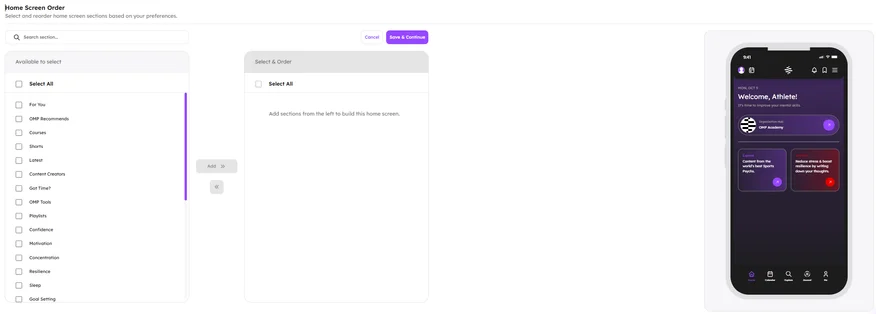
Now you get to build out your Home Screen and see what it will look like with the Home Screen Builder Preview.
Select single or multiple items that you want to appear you home screen and then click ‘Add’. These items include Focus Areas (for example, Confidence, Motivation, Sleep etc). If you want to change the order of the home screen, drag and drop the items you have added to your home screen in the Select & Order column.
Once you have added the items you want to Home Screen and confirmed the order, click ‘Save & Continue’.
Step 5
Once you create a Home Screen you will return to Home Screen tab.
Your newly created Home Screen will not be automatically set as your team’s home screen.
Click the toggle next to your newly created Home Screen to make it your active Home Screen. You will be presented with a pop up to confirm or cancel the changing of your currently active Home Screen.