All staff members that need access to the Dashboard need the correct role assigned to their account to permit them access.
They will go through the same signup process as all other users within your organization.
Adding Staff
Head to the My Organization section of the Dashboard, then navigate to the Staff tab. Click ‘Add New Staff Member’.
Enter their first name, last name, email address and then assign them with a staff role.
Once added, click ‘Add Staff Member’.
Your added staff member will automatically receive an email invite requiring them to set up their password.
Once completed, they can log in to both the OMP Dashboard and App.
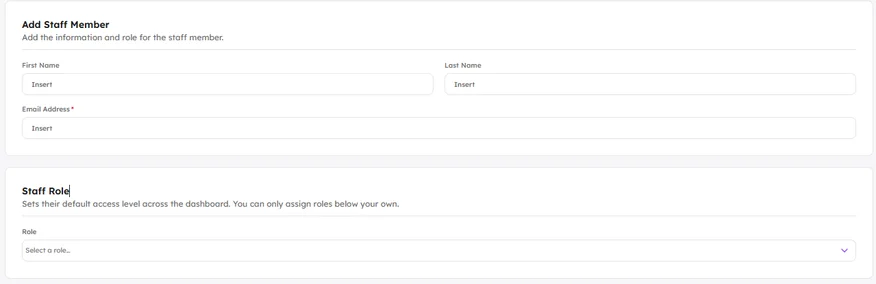
Staff Roles
When granting your staff access to your organization’s Dashboard, you can choose what level of access they have to each part of the Dashboard.
This allows you to provide coaches and other support staff with access to top level analytics, whilst keeping exercise responses, notes and other sensitive data private.
There are five different Roles within the Dashboard:
| Role | One-liner |
|---|---|
| Owner | Licence holder. Org deletion, ownership transfer and Admin management. Full unrestricted access to everything. |
| Admin | Full operational access including org settings and role management. Sees all entities including private ones. |
| Staff | Everyday practitioner. Analytics, prescriptions, notifications and user management. Access subject to entity-level permissions. |
| Contributor | Guest specialist. Creates and manages their own content, surveys, playlists and programs only. Analytics scoped to own content. |
| Viewer | Read-only. Sees only what they have been explicitly granted access to. Cannot create, edit or delete anything. |
Dashboard Access is where you control which dashboard users can see and work with a specific athlete, team, or group. You’ll find it as a tab pinned to the right of the tab bar, marked with a shield icon. It appears on every User, Team, and Group profile.
Only Owners and Admins can open and edit Dashboard Access. Staff, Contributors, and Viewers can’t see or change it.
The three access states
Every entity is in one of three states:
| State | What it means |
|---|---|
| Public | Everyone on the dashboard can see it, and their normal role permissions apply. Nothing needs configuring. |
| Public with exclusions | The entity is public, but you’ve set specific individuals to No Access — hiding it from just those people. |
| Private | Only the people you explicitly add can see it. Everyone else has no access by default. |
Dashboard Access matters on both Public and Private entities. On a Public entity you can still open it to exclude specific people; on a Private entity you use it to grant access.
Setting each person’s level
Once someone is added, you set their permission per section (Analytics, Notes, and so on). Most sections have three levels:
- No Access — the section is hidden from them.
- View — read only.
- Full — they can read, create, edit, and delete.
Analytics and Content Plays only have No Access and Full.
Two rules to know
Owners and Admins always have access. They bypass Private settings and see every entity. Their access can’t be reduced or removed here, their rows show as locked.
A role is a ceiling, not a floor. Dashboard Access can only restrict a person downward from what their role allows, it can never grant them more than their role permits. For example, a Viewer can never be pushed above View, no matter what you select.