Navigate to the ‘Groups’ page on the left hand navigation bar.
Your group overview screen will display a table of all the groups within the Dashboard. The table displays a group’s name, sport, number of users, and the date that group was last updated.
Creating a Group
To create a group select the ‘Add New Group’ button in the top right corner of the screen.
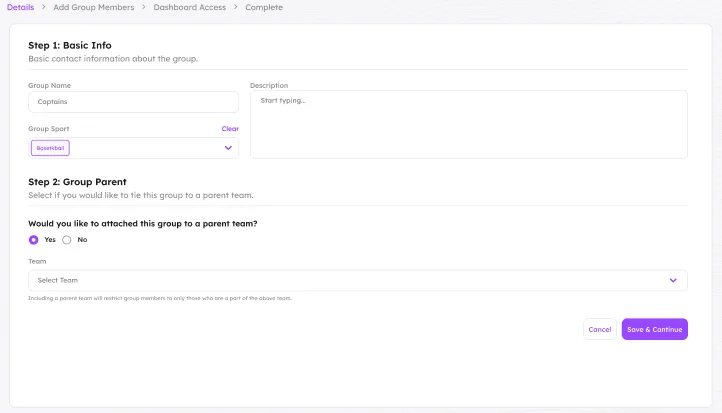
Enter your Group’s name and a short description. Press ‘Save & Continue’ when you’re satisfied with what you’ve written.
If your group belongs within a Team, you can attach that Team as a parent.
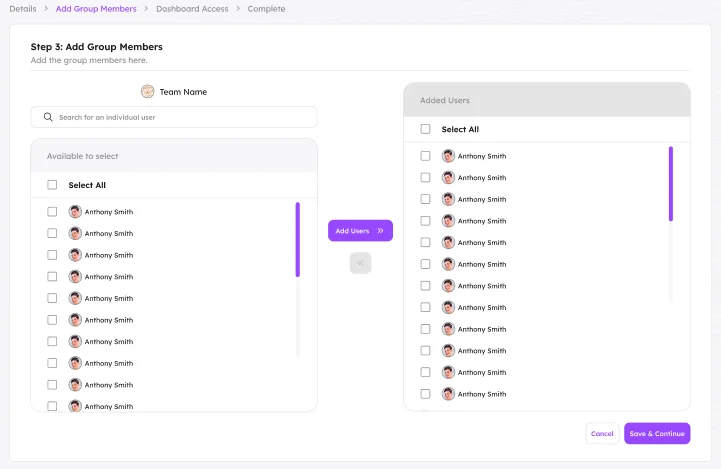
The next page allows you to add members to this group. Search for your desired members, tick them and click ‘Add Users »’.
If you wish to remove someone from the group, tick them and click ‘« Remove Users’. Once you have added all desired members click ‘Save & Continue’.
Next you will be taken to determine which Dashboard users can edit and access a Group.
In the drop down menu you can choose either Private or Public.
Private allows you to grant access to the various parts of the Group- Access, Analytics, Notifications, Notes, Group Members, Calendar, Content Plays, Surveys, Resources and Home Screen.
Access permissions for each area can be set to Full, View or No Access for all of your Dashboard users except for the Dashboard Owner or Dashboard Admin.
When you make a group Public, permissions then revert to the default permissions of the role of the dashboard user. For example, a Viewer or Contributor roles have no edit access to the Group.
Once you have completed the Dashboard Access, click Save & Continue.
Managing Group Members
To manage group members of an already created group, first navigate to the profile of the group. Once you have opened the group profile, go to the ‘Group Members’ tab.
To edit the members of the group press the ‘Edit Group members’ button in the top right corner of the page.
Add or subtract users from the group. Once you are satisfied with the users on the group, press the ‘Update’ button to confirm your list.