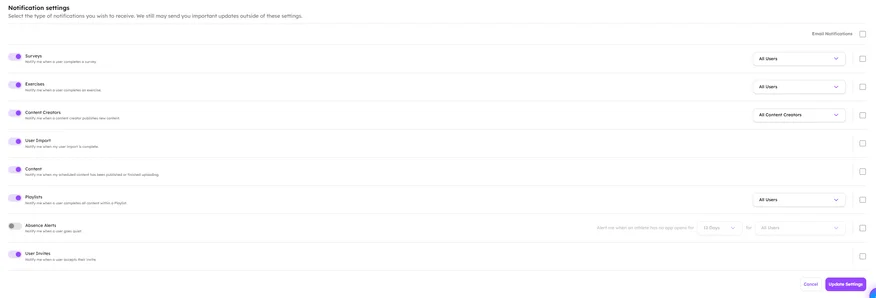
Dashboard users receive Notifications within the OMP Dashboard and can elect to receive the same notifications by email when athletes complete specific actions within the OMP App.
To view new Dashboard Notifications, click the bell icon that is between the ACE AI button and your profile in the top right corner of the dashboard.
This will show you a list of the latest notifications that have come in to your dashboard. To view more click ‘See All’.
Now you are in the Dashboard Notifications Hub. Here you can click on a notification to get more information about the notifications that you have received. Opening a notification doesn’t clear it. Click the check button on a notification to clear it, and cleared notifications move to the ‘Cleared’ tab..
Customize Your Notifications
You can customize the Dashboard Notifications that you receive.
Click the ‘Settings’ button once you are in the Dashboard Notifications hub. The window that opens will show you the notifications you are receiving and then turn off and on what you do want to receive.
You can also opt to receive Email Notifications so that when an athlete completes an action you can be sent an email of that engagement.
Once you have made changes, click Update Settings.