ACE AI is already built into the OMP Dashboard, however for App users (your athletes) ACE is not active. The following will help you to turn on ACE for your athletes (should you choose to) and explain how to customize your response to any prompts that may trigger a Crisis support message.
Turn On ACE AI for Your Athletes
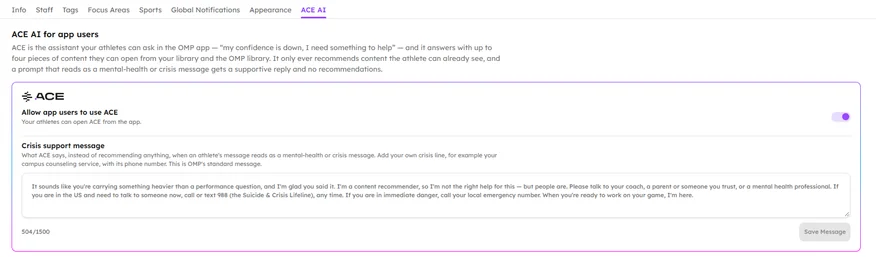
When a dashboard is created, the ACE content finder is set to off for all app users within your organization. ACE on the mobile device operates in the same way as the dashboard, it simply recommends content based off of an app user’s prompts.
If you want your athletes to have access to this content finder follow these simple steps:
- Navigate to the My Organization section by clicking your name in the top right corner of the dashboard.
- Once in My Organization, click on the ACE AI tab at the end which is at the far right.
- To turn ACE AI on, click the toggle.
Congratulations, your athletes now have access to ACE AI!
If you choose to turn ACE AI off for your athletes, simply click the toggle once more to turn it back to off.
Customize Your Crisis Support Message
Should one of your athletes enter a prompt that is beyond mental skills training or sport psychology, and be something that concerns a more clinical response, it will trigger a crisis support message.
OMP has a default crisis support message in place, however given your organization may be outside the United States or have its own crisis service we recommend you add your own.
To edit the crisis support message, open the ACE AI tab within the My Organization page. The box appears once ACE is turned on, and only Owners and Admins can change it.
Click into the text box and edit it as you see fit and then click ‘Save Message’.