Before adding any content of your own into your dashboard it’s important to make sure you have created yourself as a content creator first.
Step 1: Getting Started
To start click ‘Content’ on the Dashboard menu. You will arrive at the Content page where you can view all of the content currently available on the OMP App.
To upload your own content that you can distribute to your athletes, staff, and teams, click the ‘Create Content’ button.
Step 2: Select Content Type
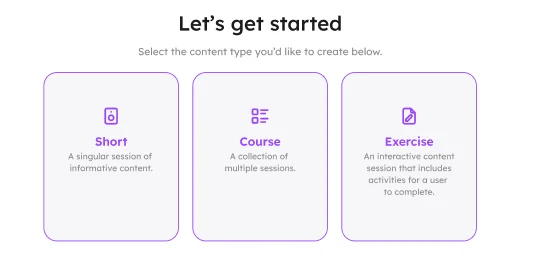
You will be taken to a page that will allow you to select either a Short, Course or Exercise.
Given you are creating a Course, click Course.
Step 3: Input Information
You will now be taken to a page that will require you to enter a range of information about the Course. This includes:
Title
This title should capture the theme being discussed during the Course. Use something eye-catching that best sums up what you’re talking about. Best practice is to keep your title to six words or less.
Description
Two or three lines that tells your athletes what they’re about to listen to.
How it Helps
Provide your listeners with context as to how the information within the Course will help their performance. For example: Studies show that athletes who use visualization are more likely to….
When to Use
This gives your athletes an indication of when they should listen to the content. If the information in the Course is applicable to their pre-performance preparation but not during or after, you should let them know!
Cover Image
A photo that best fits the content you’re talking about. Try and use an image of one of your athletes or the entire team that best fits the content in your audio. Ensure the subject in your photo is in the centre.
Cover Image Size
Recommended dimensions 750px x 485px – optimal JPG or PNG size is 320kb
Step 4: Content Creator, Focus Areas, Sport
Now that you have completed inputting the Course’s title etc., it is time to input more information.
Content Creator
Click the dropdown. You will see a list of content creators that you can attach to the Course. Select the psychologist, performance coach etc., who voiced the content. You can select multiple Content Creators if there is more than one Content Creator featured in the content.
Focus Area
Select the focus area that is being discussed within the Course. So, if the theme of the Course is motivation, select Motivation. You can select multiple Focus Areas.
Sport
If the Course is specific to a certain Sport, then select that Sport. You can select multiple Sports.
Tags
Tags are crucial in helping OMP deliver precise content to your users.
Based on user’s behaviors, we recommend them content that will help improve their mental performance using the tags you attach to your content. Select tags that relate to the content. The more tags, the more informed OMP will be when recommending content to your users.
Think of Focus Areas as Genres, and Tags as sub-Genres. For example, Pressure is the Focus Area, with ‘Awareness’ being a tag. Therefore the Content item would relate to awareness under pressure
Step 5: Course Sessions
You are now ready to upload your content.
Courses are multi-session content items – think of each session as chapters of a book.
You will be able to give each session its own title and description. These should be entirely unique to the Course’s overall title and description.
Click the select file button. You will be greeted by a file browser pop up. Find the audio or video file that you wish to share and select it.
You will see the dashboard processing the file. Depending on the size of the file this may take a while.
Once you have provided all details for the Session, click the confirm session button. You can continue to add additional session from this point.
Once all of your sessions have processed, you will be able to proceed by clicking Save & Continue
Step 6: Set Access
Now that you have uploaded your Course and completed all details relevant to the Course, you can decide who has access to it.
To determine who has access to your Course you will need to answer this question: Do all app users have access to view this content item?
- Yes
- If you leave it as Yes, all Users within your organization with access to the App will gain access to this Course.
- If you select Yes but choose Exclude Users, you can allow all Users to access this content item, except for the users you choose to Exclude. For example, you want every athlete to access it, except for one specific team, you exclude that team.
- No If you have selected No, then you must determine the exact Users, Groups or Teams that do have access to your content.
Once you have chosen who can access the Course, click ‘Continue.’
Step 7: More Like This
Once a user has finished listening to or watching a content item, they will be presented with content items that they can listen to next. These content items are either automatically selected by OMP’s algorithm or can be manually selected by the content uploader.
Automatic picks are items with the same sport and an overlapping focus area or tag, newest first.
When you progress to the ‘More Like This’ page, you can choose to let the content be selected automatically or for you to manually select the content.

If you opt to select the recommended content manually, you will be presented with a list of previously uploaded content.
You can either scroll through the list, search for content items by their title or user filters to find the content you wish to recommend.
Once you have completed this, click ‘Continue’.
Step 8: Dashboard Access
On this page you can determine which Dashboard users can edit and access a Course.
In the drop down menu you can choose either Private or Public.
Private allows you to grant access to the various parts of the Course – Access, Analytics and Content Plays. Analytics only has No Access or Full.
Access permissions for each area can be set to Full, View or No Access for all of your Dashboard users except for the Dashboard Owner or Dashboard Admin.
When you make a course Public, permissions then revert to the default permissions of the role of the dashboard user. For example, a Viewer has no edit access to the Course, and a Contributor can edit only content they created.
Once you have completed the Dashboard Access, click Save & Continue.
Step 9: Review & Publish
Once your file has processed you can choose to publish the Course immediately, meaning it is available to your users immediately, or you can schedule it to publish at a specific time and date.
If you choose to schedule your Course, you and your athletes will not be able to see it in the OMP app until the chosen date.
When you are happy with your choices, click ‘Complete’.
Step 10: Complete
If you have chosen to publish your content immediately, go ahead and send your athletes a Push Notification to let them know the content is live or assign this content to a user.
If you have scheduled the publication of the Course, you can also schedule a Push Notification.