Calendars appear within all User, Team and Group profiles. They provide a broader view of all activity assigned to a User, Team or Group.
You can also use calendars to assign ad-hoc content to your Users, Groups and Teams.
There are two ways to assign content to a Calendar, either by the Info tab or Calendar tab within a User, Team or Group profile.
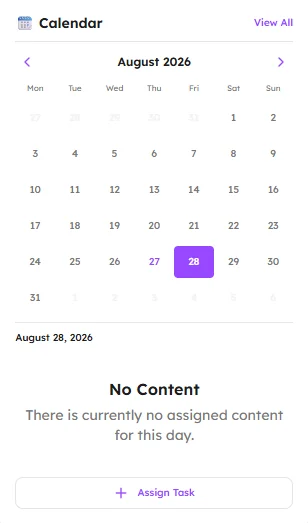
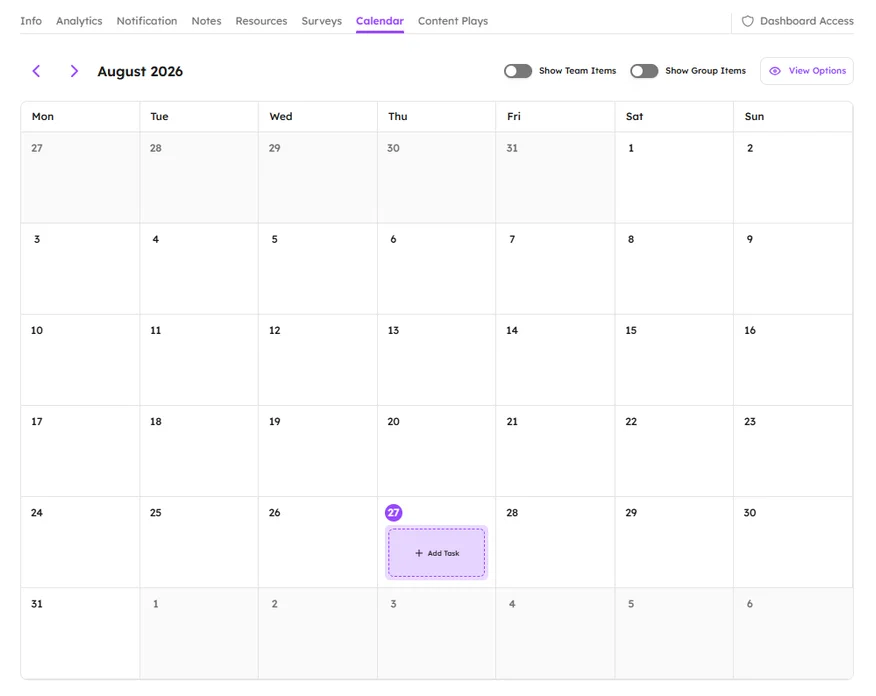
On the Info tab click the ‘+Assign Task’ button. On the Calendar tab, hover over a date and then click the ‘+Add Task’ button.
You will then be able to select a Content, Tool or Survey to assign to your User, Group or Team.
Adding a Content Item
- Click Content on the Add Task pop-up.
- Then search for a Short, Course or Exercise.
- Select the Short, Course, Course Session or Exercise.
- Choose the time you want a notification to be sent to the Users being assigned the Content item.
- Then click Add Content .
Adding a Tool
- Click Tool on the Add Task pop-up.
- Select Journal.
- Choose the time you want a notification to be sent to the Users being assigned the Tool.
- Click Add Tool .
Adding a Survey
- Click Survey on the Add Task pop-up
- Search for a Survey in the Search Bar.
- Select the Survey you want to share.
- Click Add Survey .